Translate with Any OpenAI-Compatible Model
ButterKit works with any cloud model that exposes an OpenAI-compatible chat completions endpoint. This includes self-hosted models, local inference servers, and third-party providers beyond the ones with dedicated setup guides.
If your provider or tool accepts requests in the same format as the OpenAI /v1/chat/completions API, you can use it for translation in ButterKit.
Prerequisites
- A ButterKit Pro license
- A running endpoint that implements the OpenAI chat completions API format
- An API key (if required by your endpoint)
Connect a Custom Endpoint to ButterKit
Open Settings
In ButterKit, go to Settings > Models.
Add a new model
Click the + button to add a new cloud model.
Enter your model details
Fill in the following fields:
| Field | Value |
|---|---|
| Description | A label for this model (e.g. Ollama Llama or Together AI) |
| URL | Your endpoint’s base URL (see compatible providers below) |
| API Key | Your API key, or leave blank for local endpoints that don’t require one |
| Model | The model identifier your endpoint expects |
| API Key Header | Leave blank for standard Authorization: Bearer headers. Set to a custom header name if your endpoint requires one. |
| Temperature | 0.35 |
Temperature controls randomness: lower values (0.0-0.3) produce more literal translations, while higher values (0.4-0.7) allow light paraphrasing. We recommend
0.35as a good starting point. Some endpoints may clamp or ignore this value.
Security: Your API key is stored securely in the macOS Keychain. It is never sent to ButterKit servers or any third party other than the provider you configure.
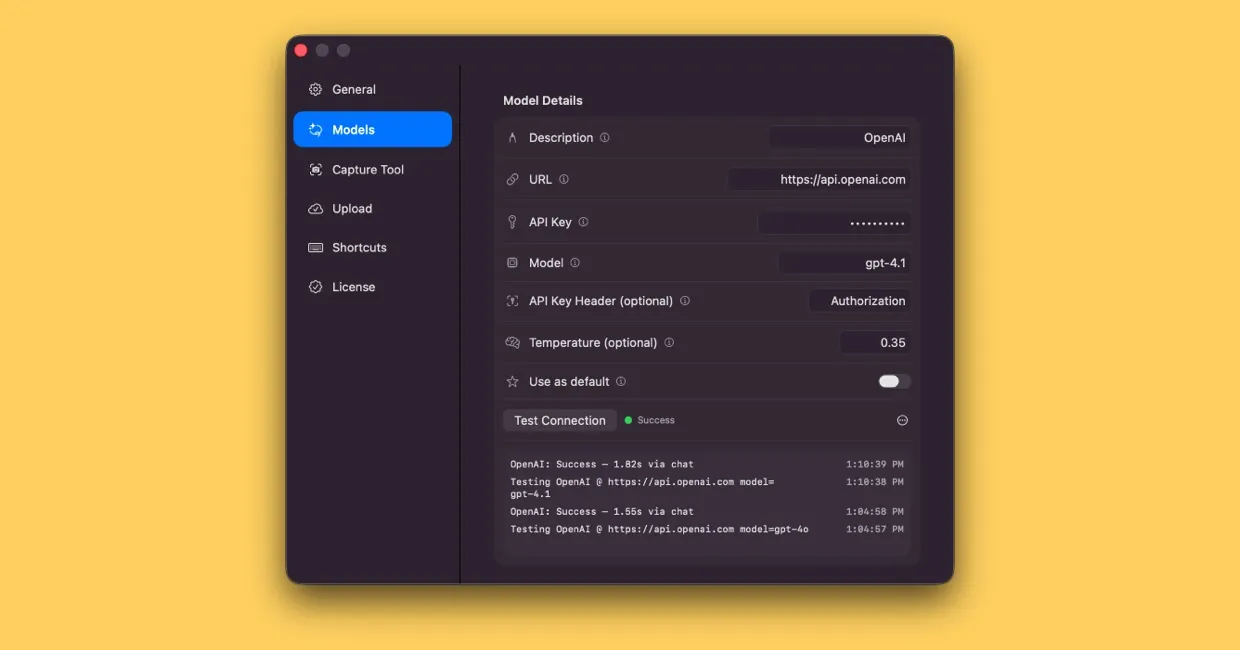
Connecting a cloud translation model in ButterKit Settings
Test the connection
Click Test Connection to verify that ButterKit can reach your endpoint. You should see a success confirmation.
Start translating
Toggle Use as default if you want this model for all translations, or select it from the Translate with dropdown when adding a localization.
Compatible Providers
Any service or tool that implements the OpenAI chat completions format will work. Here are some popular options:
| Provider / Tool | Typical Base URL | Notes |
|---|---|---|
| Ollama | http://localhost:11434 | Run open-source models locally on your Mac |
| LM Studio | http://localhost:1234 | Local model server with a visual interface |
| Together AI | https://api.together.xyz | Cloud-hosted open-source models |
| Groq | https://api.groq.com/openai | Ultra-fast inference for supported models |
| Fireworks AI | https://api.fireworks.ai/inference | Fast inference with a broad model catalog |
Check your provider’s documentation for the exact base URL and supported model names.
When to Use a Custom Endpoint
- Local/offline translation. Run Ollama or LM Studio on your Mac for fully private, offline translation with no API costs.
- Specialized models. Use fine-tuned or domain-specific models not available through major providers.
- Cost optimization. Self-hosted or alternative providers can be significantly cheaper for high-volume work.
- Privacy requirements. Keep all data on your own infrastructure with no external API calls.
Troubleshooting
If Test Connection fails:
- Verify your endpoint is running and reachable (for local servers, check that the process is active)
- Confirm the base URL does not include a trailing
/v1/chat/completionspath (ButterKit appends this automatically) - Check that the model name matches exactly what your endpoint expects
- If your endpoint uses a non-standard auth header, set the API Key Header field accordingly
Quick Help
- Need more help? Browse the Documentation
- Check out our Templates & Add-ons
- Join us on Discord for quick help
- Any other questions? Get in touch