How to upload screenshots to App Store Connect
Instead of manually uploading PNG images in App Store Connect, ButterKit can upload your screenshots for you using the ASC API (similar to Fastlane, but without the manual setup). What used to take hours or even days (creating, exporting, uploading, and manually organizing in ASC) can be done in seconds with the ButterKit upload feature. Your credentials are stored securely in your Keychain and only used to connect directly with the App Store Connect API from your machine. It’s easy to get started.
What are all the ways to upload screenshots to App Store Connect?
There are four ways to get screenshots into App Store Connect. They all end up in the same place (the media manager on your app’s version page) and differ only in how much manual work is involved:
- The App Store Connect website (manual). Open App Store Connect app, go to your app and version, and drag PNGs into each display-size slot. Fine for one device size in one language; it breaks down fast once you localize (10 screenshots × 3 device sizes × 30 languages is 900 hand-uploads). App previews (videos) upload through the same interface.
- fastlane deliver (the
upload_to_app_storeaction). Free and scriptable, and a good fit if you already run fastlane in CI; but it needs a working Ruby environment, an API key config, and a specific screenshots folder convention. - The App Store Connect API. Apple’s REST API gives you full control (create a screenshot set, reserve an upload, send the file, commit), at the cost of the most code to write and maintain.
- ButterKit (one click). ButterKit exports every artboard at the exact pixel dimensions each slot requires and uploads them into the right display-size slots and localizations via the ASC API; no Ruby, no scripts. Set up in minutes below.
How do I set up App Store Connect credentials?
Login to App Store Connect
- Go to App Store Connect and log in with your Apple Developer account.
- Navigate to Users & Access > Integrations > App Store Connect API
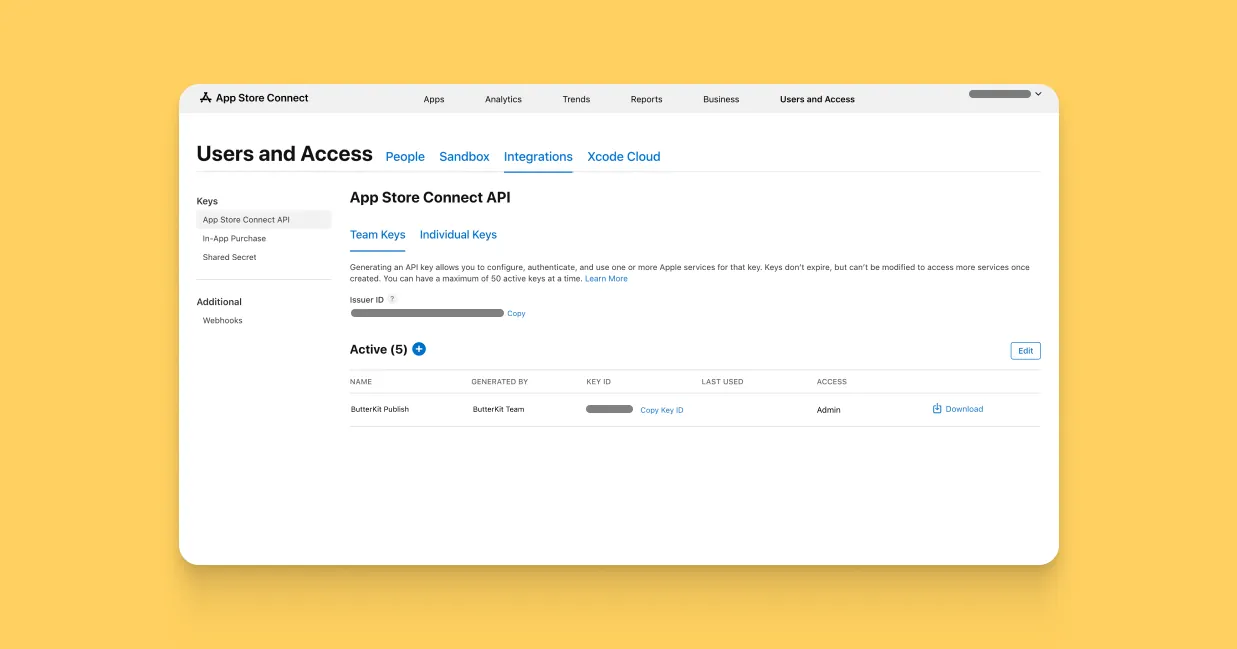
Navigate to the Users & Access > Integrations page in App Store Connect
Create a Team Key
- Click the + button to create a new key.
- Enter a name for the key (e.g. “ButterKit App”) and select the App Manager role. App Manager role is required for ButterKit to have proper permissions to manage your screenshots and localizations.
- Download the
.p8file and save it securely (you won’t be able to download it again). - Note down the Issuer ID and Key ID displayed on the page.
Configure ButterKit
- Open ButterKit > Settings > Upload tab
- Enter your Issuer ID, Key ID, and select your .p8 file
- Save credentials
- Press the “Test Connection” button to ensure it works
How do I upload screenshots from ButterKit?
Once your credentials are saved, uploading is a single export:
Press Export
Press “Export” in the top right of ButterKit and choose “Upload to App Store Connect”.
Select artboards and localizations
Choose which artboards and localizations you wish to upload. Note that only artboards that are compatible with your target platform (e.g. iOS) will be eligible for upload.
Watch the status log
The status log keeps you informed if anything needs to be adjusted.
Voila! It’s that easy.
ButterKit does the heavy lifting for you, capturing directly from Xcode Simulator, framing it into a realistic 3D device, translating, formatting, and uploading directly to App Store Connect. Share your screenshots and app launch on the ButterKit Discord or subreddit for feedback and support from fellow builders/designers/devs.
FAQ
If I leave a field empty (e.g. Promotional Text) and publish, will it overwrite the existing content in App Store Connect?
No. Uploads are deliberately non-destructive: ButterKit only sends the fields you’ve actually filled in. Any field you leave empty is skipped entirely, so whatever you already have in App Store Connect stays exactly as-is. You can safely publish a partial set of changes without worrying about wiping out existing metadata.
Can I use ButterKit instead of fastlane’s upload_to_app_store?
Yes. ButterKit’s upload is an alternative to fastlane’s upload_to_app_store (deliver) action: it talks to the same App Store Connect API, but runs natively on macOS with no Ruby environments, gem conflicts, or brittle CI scripts to maintain.
Why does App Store Connect say my screenshot dimensions are wrong?
Each display-size slot only accepts specific pixel dimensions, and a screenshot rendered for a different display class gets rejected. See Fix “The dimensions of one or more screenshots are wrong” for causes and fixes, or the full App Store screenshot size guide for every accepted dimension.
Quick Help
- Need more help? Browse the Documentation
- Check out our Templates & Add-ons
- Join us on Discord for quick help
- Any other questions? Get in touch