MCP (AI Agents)
MCP (AI Agents)
MCP requires v1.8+ downloaded from butterkit.app. The Mac App Store version does not include MCP yet.
ButterKit exposes a Model Context Protocol (MCP) server that lets AI agents control ButterKit programmatically. Use natural language in tools like Cursor, Claude Code, or OpenAI Codex to:
- Design screenshots from a prompt. Describe the look you want and let the agent create artboards, apply templates, set text, and configure 3D devices.
- Localize in bulk. Add languages and translate all screenshots and App Store metadata in a single command.
- Automate your release pipeline. Wire ButterKit into your CI/build process so screenshots update, translate, and upload to App Store Connect without manual work.
- Iterate fast. Ask for design tweaks, swap copy, preview renders, and export, all from your editor or terminal.
Prerequisites
- ButterKit v1.8 (direct version only) must be running with at least one document open.
- MCP must be enabled in ButterKit > Settings > MCP.
- No extra installation needed. ButterKit has an MCP bridge at
ButterKit.app/Contents/MacOS/butterkit-mcp. When setting up your AI tool, you’ll point it to this path so it can communicate with ButterKit.
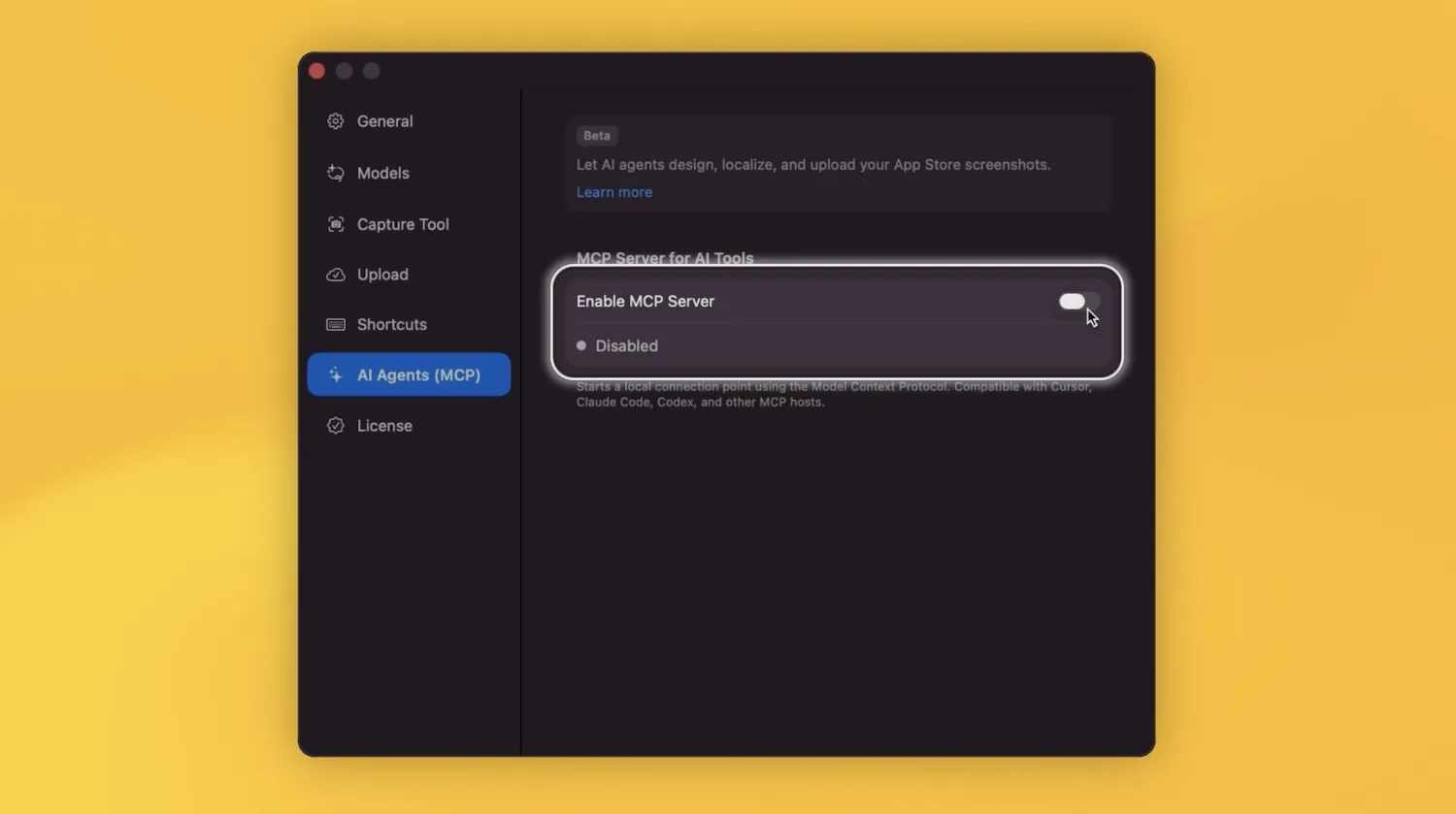
Enabling MCP in ButterKit settings
How It Works
Your AI tool connects to ButterKit through the MCP connector utility and gains access to 40 tools across 5 namespaces: Document, Design, Export, Localization, and App Store Connect. You describe what you want in plain English, and the AI agent calls the right tools automatically.
Set Up Your AI Tool
Reference
- Tool Reference (all 40 tools)
- Workflows (step-by-step recipes)
Notes
- The MCP server renders artboards using ButterKit’s RealityKit engine. The app window does not need to be focused, but the app must be running.
- All IDs (
documentId,artboardId,templateId, etc.) are obtained from the corresponding list tools. - Language codes follow ISO 639-1 (e.g.
"en","es","ja"). App Store Connect locale codes follow Apple’s format (e.g."en-US","fr-FR").
Development builds: If you’re running a dev build from Xcode, replace
/Applications/ButterKit.appwith the path to your DerivedData build, e.g.~/Library/Developer/Xcode/DerivedData/ButterKit-*/Build/Products/Debug/ButterKit.app.
Quick Help
- Need more help? Browse the Documentation
- Check out our Templates & Add-ons
- Join us on Discord for quick help
- Any other questions? Get in touch