How do I activate my ButterKit license?
ButterKit is offered through two separate distribution channels, and each has its own activation path. Choose the section below that matches where you purchased.
Direct (website) version
If you purchased a Pro license from butterkit.app, you’ll receive a license key by email shortly after checkout.
- Open ButterKit on your Mac
- Go to ButterKit > Settings > License
- Paste your license key and click Activate
- You should see a confirmation that your Pro license is active
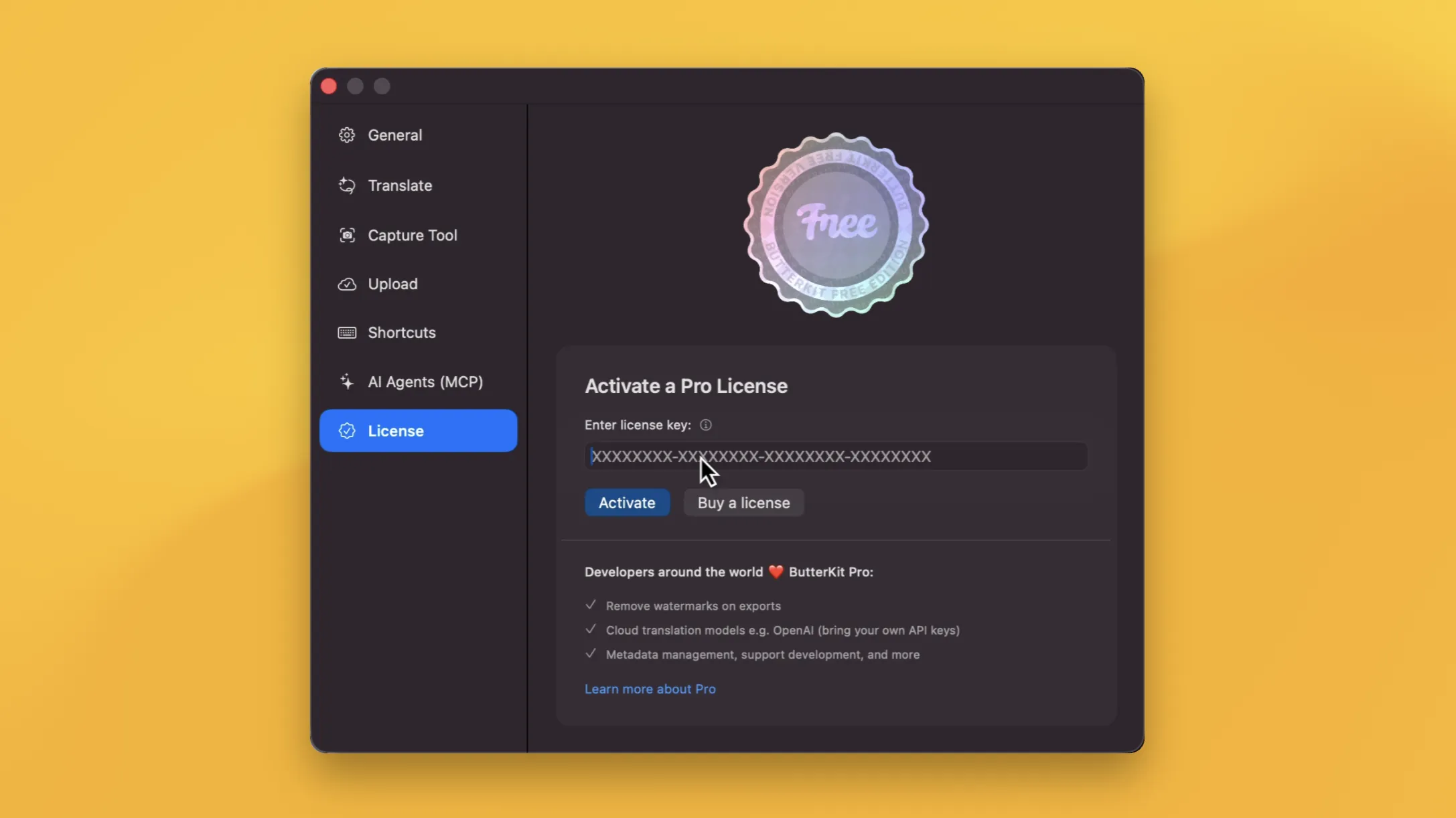
Activate or deactivate your ButterKit Pro license in Settings > License
A single license can be activated on up to 5 computers. You can manage or deactivate machines from the “View Order” link in your purchase confirmation email.
Mac App Store version
If you installed ButterKit from the Mac App Store, Pro is unlocked through Apple’s standard in-app purchase flow. There is no license key to enter.
First-time purchase
- Open ButterKit on your Mac
- Go to ButterKit > Settings > License (or trigger any Pro feature)
- Click Upgrade to Pro and complete the purchase with your Apple ID
- Pro features unlock as soon as the purchase completes
Already purchased on this Apple ID
If you’ve already purchased Pro (for example, on another Mac, after reinstalling, or with Family Sharing), use Restore Purchases:
- Open ButterKit on your Mac
- Go to ButterKit > Settings > License
- Click Restore Purchases
- Sign in with the Apple ID used for the original purchase if prompted
Still stuck?
See Troubleshooting activation issues, or email support@butterkit.app and we’ll help you sort it out.
Quick Help
- Need more help? Browse the Documentation
- Check out our Templates & Add-ons
- Join us on Discord for quick help
- Any other questions? Get in touch