How do I show or hide the notch & Dynamic Island in screenshots?
Do iPhone screenshots show the notch?
No. A screenshot taken on a real iPhone is always a full rectangle. The notch and the Dynamic Island are hardware cutouts in the display, so they simply don’t exist in the captured image. The status bar area appears as normal pixels with no black cutout.
The one exception: if a Live Activity is running (a timer, music, directions), the Dynamic Island’s contents are software-rendered by iOS, so the black pill and its contents do appear in your screenshot. That’s also the answer to “why doesn’t my Dynamic Island show in screenshots”: when nothing is active, there’s nothing drawn to capture.
So if you want a screenshot that looks like an iPhone, with the notch, island, and device body visible the way App Store screenshots usually do, you don’t get that from the screenshot itself. You add it by placing the screenshot inside a device frame, which is exactly what ButterKit’s 3D devices do.
What about iOS Simulator screenshots?
Same thing: pressing Cmd + S in the Simulator saves a full rectangle without the notch or Dynamic Island cutout. If you specifically want the cutout baked into the image, capture from Terminal with a mask:
# black = paint the notch/corner mask black, ignored = full rectangle
xcrun simctl io booted screenshot --mask=black ~/Desktop/screenshot.png
More on Simulator capture in Where are iOS Simulator screenshots saved?
What is a device “notch”?
Showing the notch of a 3D device is generally recommended because users will expect it contextually. When you capture your screenshots from Xcode Simulator (e.g. via the ButterKit Capture Tool), the notch is generally included automatically.
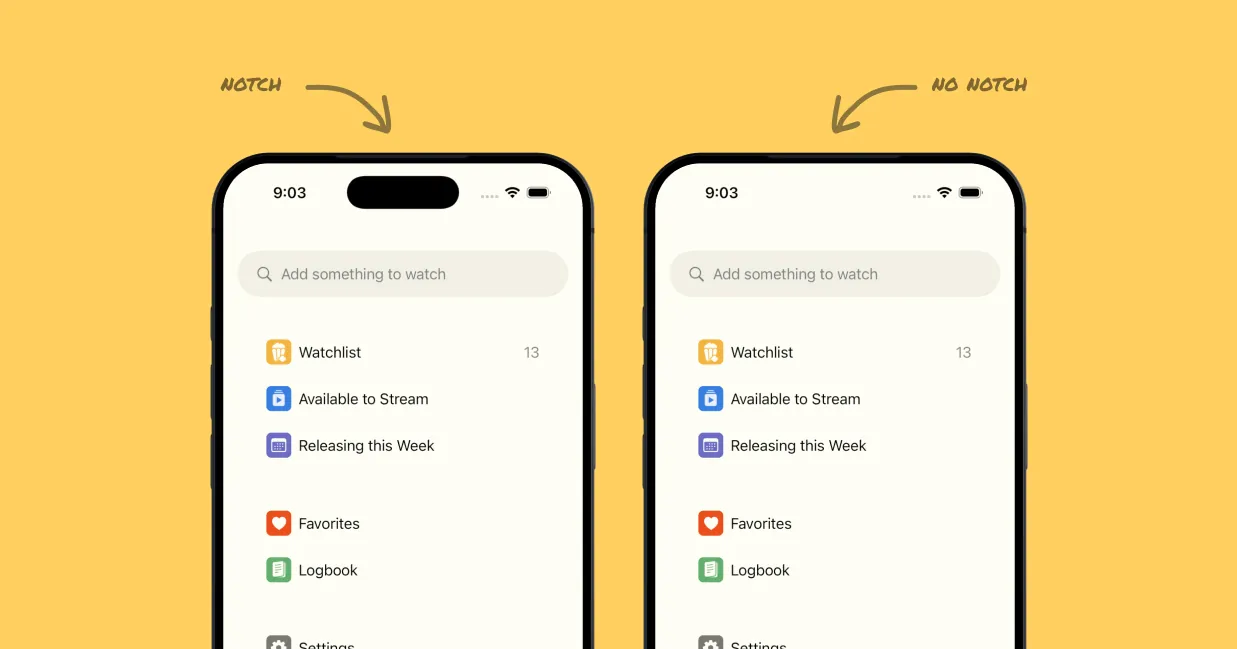
You can choose to show or hide the notch in your designs
Showing the notch
To show the notch in your designs, simply capture your screenshots using Xcode Simulator (e.g. iPhone 17 Pro includes the notch), or the ButterKit Capture Tool. Screenshots generated in this way automatically include the notch (recommended).
Hiding the notch
To hide the notch from your designs, capture your screenshots from real devices. Screenshots captured on a real iPhone, for example, do not include the notch. Additionally, you can choose iPhone 16e in the Xcode Simulator, which doesn’t include the notch.
Quick Help
- Need more help? Browse the Documentation
- Check out our Templates & Add-ons
- Join us on Discord for quick help
- Any other questions? Get in touch