Where are iOS Simulator screenshots saved?
Zach Spitulski • Updated September 10, 2026
I just pressed the screenshot button on Sim, where did it put it??
shouted across the office several times
Path:
~/Desktop/Simulator Screenshot - iPhone 16 Pro - 2026-07-09 at 09.41.00.pngUsing Xcode 27? Device Hub saves screenshots to the same Desktop folder by default.
Automating
If you’re only grabbing an occasional screenshot, Desktop is fine. But once you’re capturing screenshots regularly for the App Store, the default workflow breaks down fast. I write about that in the App Store Automation Guide. If you’re looking for a faster way, you can have Simulator place the screenshots into 3D devices with description text ready for translation and the App Store:
Download the latest free version of ButterKit
Use the Capture Tool
Ensure ButterKit has the Capture Tool configured and watch as it appears next to the active Xcode Simulator window. Just hit “Capture” and watch as it appears ready to go in 3D device frames, ready for translation and direct upload to App Store Connect.
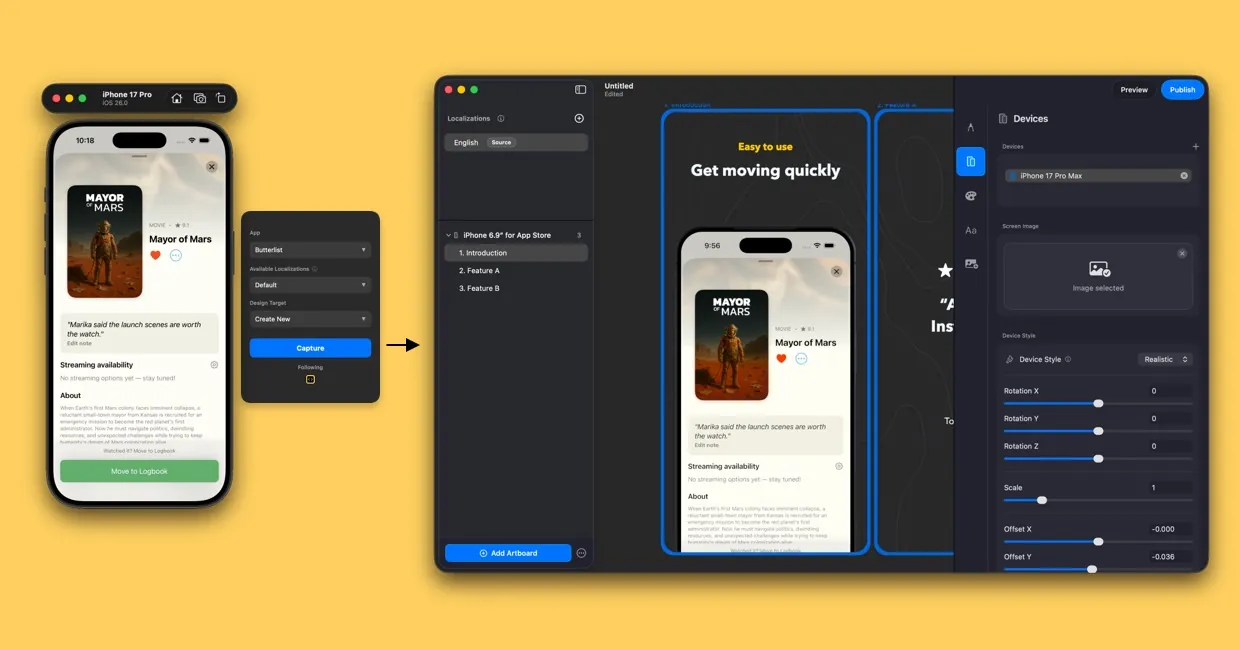
ButterKit automates the capture process, rendering into real 3D devices and prepping for the App Store
How do I use xcrun simctl io booted screenshot?
To capture a screenshot programmatically to a custom location, use the simctl command that ships with Xcode:
xcrun simctl io booted screenshot ~/Desktop/my-screenshot.pngUseful variations:
# Save as JPEG instead of PNG
xcrun simctl io booted screenshot --type=jpeg ~/Desktop/my-screenshot.jpeg

# Control how the notch/rounded corners are rendered:
# ignored = full rectangle, alpha = transparent corners, black = black corners
xcrun simctl io booted screenshot --mask=ignored ~/Desktop/my-screenshot.png

# Target a specific simulator instead of the booted one
xcrun simctl io "iPhone 16 Pro" screenshot ~/Desktop/my-screenshot.png
To quickly open Desktop and list Simulator screenshots in Terminal:
open ~/Desktop && ls ~/Desktop | grep -i "simulator"Where does Xcode 27 Device Hub save screenshots?
Starting with Xcode 27, simulators run inside Device Hub, which takes the place of the standalone Simulator app. The save location hasn’t changed: Device Hub writes screenshots to your Desktop by default, at the full resolution of the simulated device.
To take one, click the Screenshot button below the device in the Device Hub canvas. A few details worth knowing:
- Custom locations carry over. If you previously pointed Simulator at a different folder, Device Hub honors that setting first, then falls back to the system-wide macOS screenshot location.
- Physical devices too. Device Hub can screenshot a paired iPhone or iPad from your Mac, and those files also land on the Desktop.
- Screen recordings start from the Record button below the device or Controls > Record Screen, and save to the Desktop with a filename beginning with “Screen Recording”.
simctlstill works. Thexcrun simctl io booted screenshotcommands above are unchanged in Xcode 27, and Apple’sdevicectltool can now target simulators as well as physical devices.- ButterKit’s Capture Tool works with Device Hub on ButterKit v2.2.20 or later, so you can skip the Desktop entirely. See Capture from Xcode Simulator or Device Hub.
Common Variations & Gotchas
- Xcode 26 and Xcode 27: Screenshots still save to Desktop by default, in both the Simulator app and Device Hub.
- Custom save location: In the Simulator app, use File > Save Screen… to pick a different destination. Device Hub honors the same saved preference.
- Simulator vs. Physical Device: Physical device screenshots sync via Photos app, not saved directly to Desktop.
- Video recordings: Screen recordings (Cmd + R) also save to Desktop with a
.movextension. - Multiple simulators: Each screenshot filename includes the device name (e.g., “Simulator Screenshot - iPhone 16 Pro - 2026-01-30…”).
- Filename changed in newer Xcode: Older Xcode versions named files “Simulator Screen Shot - …”; newer versions use “Simulator Screenshot - …”. If you’re searching your Mac for old captures, check both.
FAQ
How do I take a screenshot in the iOS Simulator?
Press Cmd + S (the Simulator screenshot keyboard shortcut) with the Simulator window focused, or use the menu: Device > Screenshot. The image saves to your Desktop immediately. Or use the ButterKit Capture Tool to add it directly to framed mockups.
Are Simulator screenshots the same resolution as real devices?
Yes. Simulator screenshots match the native resolution of the simulated device.
Does Device Hub in Xcode 27 change where screenshots are saved?
No. Device Hub saves screenshots to your Desktop by default, the same as the Simulator app, and honors a custom location if you set one previously. Click the Screenshot button below the device in the Device Hub canvas to take one.
How do I automate Simulator screenshots?
Read the full Screenshot Automation Guide
Related Guides
- Capture from Xcode Simulator: Use ButterKit’s Capture Tool to import Simulator screenshots directly
- Link Fastlane Image Folder: Automate screenshot imports from fastlane
- App Store Screenshot Size Guide: Every required dimension for every device
Quick Help
- Need more help? Browse the Documentation
- Check out our Templates & Add-ons
- Join us on Discord for quick help
- Any other questions? Get in touch